What Is the Etsy Payment Account Dashboard?
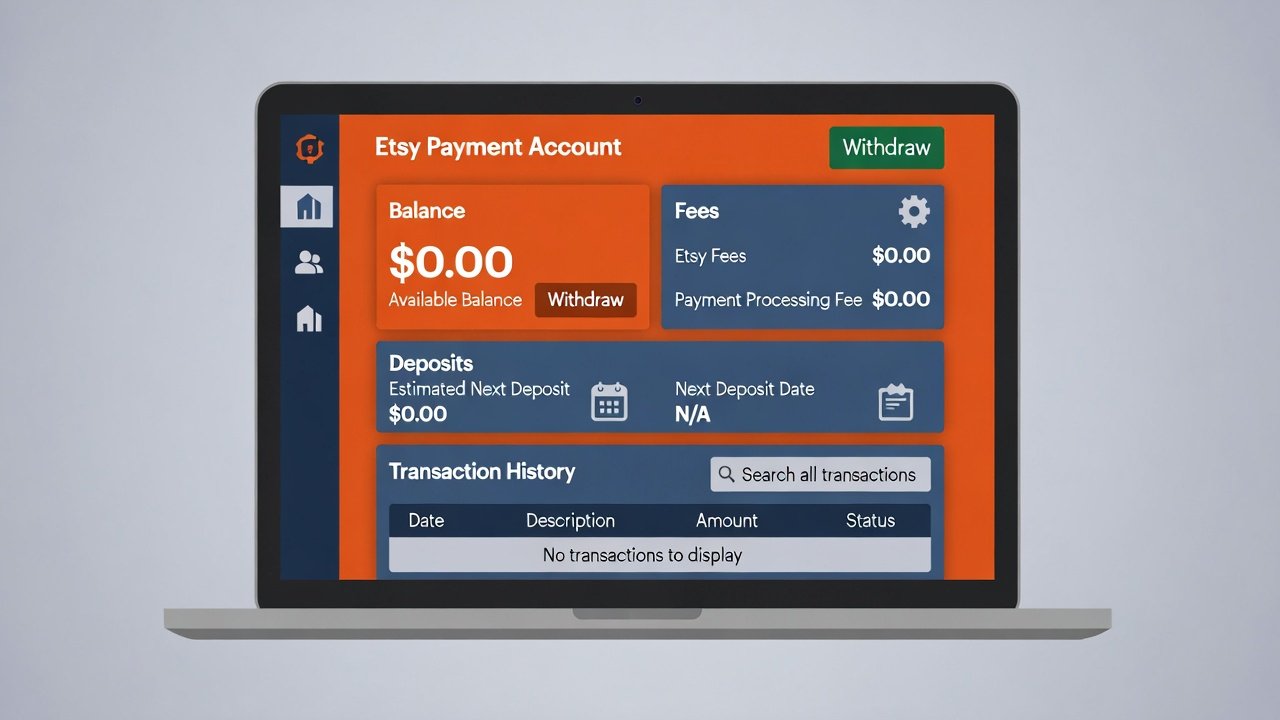
The Etsy Payment Account Dashboard is your money hub. It shows every sale, fee, and deposit for your shop. Think of it like a bank statement made just for Etsy sellers.
You can see how much you earned. You can see what Etsy charged you. You can see when money hits your bank. All in one place.
This guide walks you through the dashboard. Simple steps. Clear explanations. You can learn this today.
Where to Find Your Payment Dashboard
Log in to Etsy.com. Click Shop Manager in the top right. Then click Finances. Then click Payment account.
You will see a screen with numbers and tabs. Do not feel overwhelmed. Start with the Overview tab. It shows the big picture.
Bookmark this page. You will visit it often. Quick access saves time.
Key Sections of the Dashboard
The dashboard has several parts. Each part tells you something important about your money.
Current Balance
This number shows money you earned but have not received yet. It includes sales minus fees.
Example: You sold $100 worth of items. Etsy fees were $12. Your current balance shows $88.
This money will deposit to your bank soon. The dashboard tells you when.
Pending and Available Funds
Pending funds are sales that are still processing. Available funds are ready to deposit.
Etsy usually deposits money weekly. Some sellers get daily deposits. Your schedule appears on the dashboard.
Watch the "Next deposit" date. It tells you when to expect money in your bank.
Fees Breakdown
This section lists every fee Etsy charged you. Listing fees, transaction fees, payment processing, and more.
Click any fee to see details. You can see which order it came from. This helps you track costs.
Export this data for tax time. A simple click downloads a CSV file. Your accountant will thank you.
Deposit History
This shows every time Etsy sent money to your bank. Date, amount, and status appear here.
Use this to match deposits with your bank statements. It makes bookkeeping easy.
Missing a deposit? Check this section first. It often explains delays or holds.
How to Read Your Dashboard Like a Pro
Numbers can feel confusing. Use these simple steps to understand your dashboard fast.
Step 1: Start With the Overview Tab
The Overview tab shows your big picture. Current balance, next deposit, and recent activity appear here.
Scan this tab weekly. It takes two minutes. You will spot issues early.
See a surprise fee? Click it for details. Knowledge helps you make better decisions.
Step 2: Check the Fees Tab Monthly
Go to the Fees tab once a month. Review each charge. Make sure it matches your sales.
Look for patterns. Are certain fees growing? Do you need to adjust your pricing?
Export the data to a spreadsheet. Simple formulas can sum your total fees. This helps with tax prep.
Step 3: Reconcile Deposits With Your Bank
When money hits your bank, check the Deposit History tab. Match the amount and date.
Mark it as "received" in your records. This habit keeps your books clean.
Do this within 24 hours of each deposit. Fresh records prevent year-end stress.
Common Dashboard Questions Answered
New sellers often ask the same questions. Here are clear answers.
Why Is My Balance Lower Than My Sales?
Your balance shows sales minus fees. Etsy takes listing fees, transaction fees, and payment processing fees.
Example: $50 in sales might show $42 in your balance. The $8 difference is fees.
Click "View fee details" to see the exact breakdown. Transparency helps you plan.
When Will I Get Paid?
Etsy deposits money on a schedule. Most sellers get weekly deposits. Some qualify for daily deposits.
Your schedule appears on the dashboard. Look for "Next deposit date."
Deposits usually take 1-3 business days to reach your bank. Plan your cash flow around this timing.
Why Is a Deposit on Hold?
Sometimes Etsy holds funds for security. New shops, high-value orders, or unusual activity can trigger holds.
The dashboard explains the hold. It also tells you when funds will release.
If you have questions, contact Etsy Support through the dashboard. Help is one click away.
Tips to Use Your Dashboard Effectively
Smart sellers get more from their dashboard. Try these simple habits.
Set a Weekly Review Time
Block 10 minutes every Monday. Open your dashboard. Scan your balance, fees, and next deposit.
This habit catches issues early. You can fix problems before they grow.
Consistency beats perfection. A quick weekly check beats a stressful monthly deep dive.
Export Data for Your Records
Click "Download" or "Export" to save your data. CSV files work in Excel or Google Sheets.
Save files with clear names: "Etsy-Payments-2026-01" for January 2026.
Store files in cloud storage. This protects your records if your device fails.
Use Filters to Find What You Need
The dashboard has filters for date, order, and fee type. Use them to narrow your view.
Example: Filter by last 30 days to see recent activity. Or filter by "transaction fees" to study one cost type.
Filters save time. They help you focus on what matters right now.
Common Mistakes to Avoid
Even careful sellers slip up. Watch for these traps.
Mistake 1: Ignoring the Dashboard Until Tax Time
Waiting until April to review your dashboard causes stress. You may miss errors or deductions.
Check your dashboard monthly. Ten minutes now saves hours later.
Small, regular reviews keep your records clean and your mind calm.
Mistake 2: Not Understanding Fee Details
Seeing a fee is not enough. Know why you were charged. Click for details on every fee.
Understanding fees helps you price better. It also helps you spot errors.
Knowledge is power. Use the dashboard to learn, not just to glance.
Mistake 3: Forgetting to Reconcile Deposits
Seeing a deposit in Etsy does not mean it hit your bank. Always match dashboard deposits with bank statements.
Mark each deposit as "received" in your records. This prevents double-counting or missed income.
Accurate records protect your profit. They also make tax time easy.
Using Dashboard Data to Improve Your Shop
Your dashboard is not just for tracking. It is a tool for growth.
Spot Your Best-Selling Items
Use the Fees or Orders tab to see which items earn the most. Note their titles, tags, and prices.
Make more of what works. Apply winning patterns to new listings.
Data guides your creativity. You create what buyers actually want.
Identify Costly Fees
Review your fee breakdown. Are Offsite Ads fees high? Is payment processing eating profit?
Adjust your strategy. Turn off ads that do not convert. Raise prices to cover fees.
Small tweaks add up. Your dashboard shows where to focus.
Plan for Slow Seasons
Use Deposit History to see seasonal patterns. Do sales drop in summer? Rise in November?
Plan inventory and marketing around these trends. Prepare for busy times. Save during slow times.
Forecasting reduces stress. You stay ready for whatever comes.
When to Contact Etsy Support Through the Dashboard
Most questions have answers in the dashboard. But sometimes you need help.
Contact Support If:
A deposit is late with no explanation. A fee looks wrong or duplicate. Your account shows a hold you do not understand.
Use the "Help" or "Contact Support" button on the dashboard. Describe your issue clearly. Include order numbers or dates.
Etsy usually replies within 24-48 hours. Keep records of your conversation for reference.
Final Checklist: Dashboard Mastery
Before you close this guide, confirm these points:
- I know where to find my Payment Account Dashboard
- I understand Current Balance, Pending Funds, and Deposit History
- I review my Fees tab monthly and export data for records
- I reconcile deposits with my bank statements within 24 hours
- I use filters and date ranges to find what I need fast
- I contact Etsy Support through the dashboard when needed
If you checked most boxes, you are ready to use your dashboard with confidence.
Final Thoughts on the Etsy Payment Dashboard
Your Payment Account Dashboard is a powerful tool. It shows your money story in real time. Use it to learn, plan, and grow.
Start simple. Review one tab this week. Learn one new feature. Build your skills over time.
Remember: Clear numbers reduce stress. Good records protect your profit. Smart sellers use their dashboard as a guide, not just a report.
Keep creating. Keep tracking. And keep building a shop that thrives with clear, confident money management.
You do not need to be an accountant. You just need to stay curious and consistent.
Pro Tip: Save your favorite dashboard filters as bookmarks. One-click access saves time and makes reviews feel easy.
Important Note: Etsy updates its dashboard occasionally. If a feature moves or changes, check Etsy's Help Center for the latest guidance.