Why Track Inventory with Spreadsheets?
Running an Etsy shop means juggling many tasks. Orders come in. Materials run low. You need to know what you have and what to make next.
Spreadsheets help you stay organized. They cost nothing. They work on any device. You control every detail.
This guide shows you how to build a simple inventory tracker. Step by step. No tech skills needed. You can do this today.
What Is Inventory Tracking?
Inventory tracking means knowing what items you have ready to sell. It also means knowing what materials you need to make more.
Without tracking, you might oversell an item. Or waste money buying supplies you already have. A simple spreadsheet prevents both problems.
Think of your spreadsheet as a helper. It remembers numbers so you can focus on creating.
Step 1: Choose Your Spreadsheet Tool
You do not need fancy software. Free tools work great for Etsy sellers.
Google Sheets: Best for Most Sellers
Google Sheets is free. It saves automatically. You can access it from your phone, tablet, or computer.
It shares easily with helpers or accountants. Changes sync in real time. No lost files.
Start here if you want simple and reliable.
Microsoft Excel: Best for Advanced Users
Excel offers powerful formulas and pivot tables. It handles very large inventories well.
But it costs money. Files live on your device unless you pay for cloud storage.
Choose Excel if you already know it well or need advanced features.
Apple Numbers: Best for Mac Users
Numbers is free on Apple devices. It has a clean, visual design. Templates look beautiful.
But sharing with non-Apple users can be tricky. Some Etsy tools do not integrate as smoothly.
Pick Numbers if you live in the Apple ecosystem and value design.
Step 2: Build Your Inventory Sheet
Create a new spreadsheet. Name it "Etsy Inventory Tracker." Add these columns:
Essential Columns to Include
Item Name: What you sell. Example: "Lavender Soy Candle."
SKU: A short code for each item. Example: "CANDLE-LAV-8OZ." This helps you find items fast.
Current Stock: How many ready to ship right now.
Materials Needed: What supplies make one item. Example: "1 jar, 8oz wax, 1 wick, lavender oil."
Material Stock: How much of each supply you have on hand.
Reorder Point: The number that triggers a restock. Example: "Order more wax when stock drops below 5 jars."
Last Updated: The date you last checked this item.
Optional Helpful Columns
Cost Per Item: Materials + packaging + your time. Helps you price correctly.
Sale Price: What buyers pay on Etsy.
Profit Margin: Sale price minus all costs. Shows which items earn the most.
Notes: Special instructions. Example: "Use new supplier for wicks starting March."
Step 3: Add Simple Formulas
Formulas do math for you. Start with these easy ones.
Calculate When to Reorder
Use this formula to flag low stock. In Google Sheets, type: =IF(B2<=D2, "ORDER NOW", "OK")
This checks if Current Stock (B2) is at or below Reorder Point (D2). It shows "ORDER NOW" when you need more.
Copy the formula down the column. It updates automatically as you change numbers.
Calculate Total Material Needs
If you plan to make 10 candles, how much wax do you need? Use: =B2*E2
B2 is quantity to make. E2 is wax per candle. The result tells you total wax needed.
This prevents running out mid-production. Plan ahead with simple math.
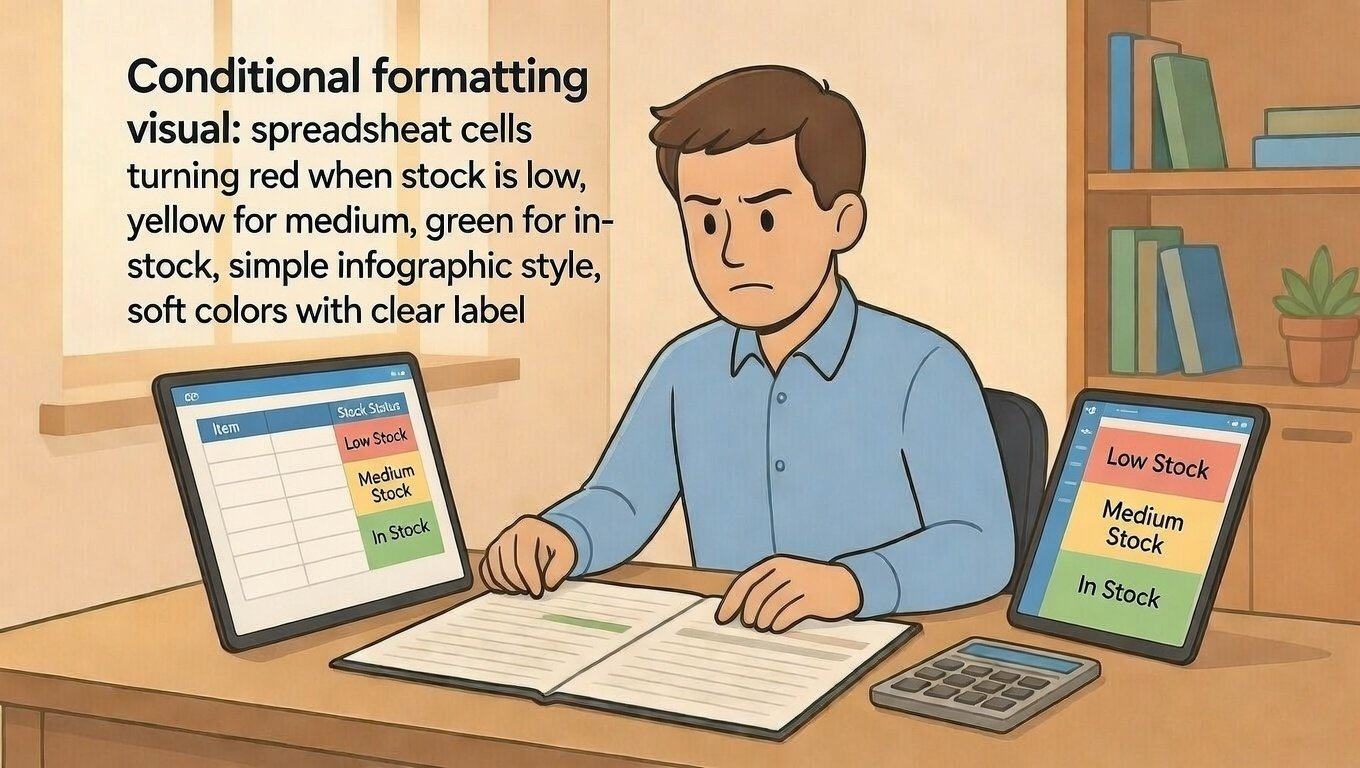
Highlight Low Stock with Color
Use conditional formatting to make low stock stand out. In Google Sheets: Format > Conditional formatting.
Set rule: "Cell value is less than" your reorder point. Choose red fill color.
Now low-stock items turn red automatically. You see problems at a glance.
Step 4: Update Your Tracker Regularly
A spreadsheet only helps if you use it. Build a simple routine.
Daily: Log Sales
When an order ships, reduce the Current Stock number by one. This takes ten seconds.
Do this right after you pack the order. Fresh updates prevent mistakes.
Set a phone reminder: "Update inventory after shipping."
Weekly: Check Material Levels
Once a week, count your supplies. Compare to your spreadsheet numbers.
Adjust any differences. Maybe you used extra wax on a test batch. Note it now.
This habit catches small errors before they become big problems.
Monthly: Review and Plan
At month end, scan your tracker. Which items sold most? Which materials run low often?
Use this data to plan next month. Order popular supplies in bulk. Pause slow-moving items.
Tracking turns guesswork into smart decisions.
Step 5: Connect to Your Etsy Shop
Your spreadsheet works best when it matches Etsy. Keep them in sync.
Export Etsy Orders Monthly
Go to Shop Manager > Orders > Download CSV. Open the file in your spreadsheet tool.
Copy sold quantities into your inventory sheet. Update Current Stock for each item.
This takes 15 minutes monthly. It keeps your numbers accurate without daily work.
Use Etsy Variations Wisely
If your listing has sizes or colors, track each variation separately in your sheet.
Example: "Necklace-Silver-16in" and "Necklace-Gold-18in" get separate rows.
This prevents selling a size you do not have. Buyers stay happy. You avoid cancellations.
Common Mistakes to Avoid
Even careful sellers slip up. Watch for these traps.
Mistake 1: Forgetting to Update After Sales
Shipping an order but not reducing stock leads to overselling. You promise an item you cannot send.
Fix: Update inventory immediately after packing. Make it part of your shipping routine.
One small habit prevents big customer service problems.
Mistake 2: Tracking Only Finished Items
Knowing you have 10 candles ready helps. But do you have wax for 10 more?
Track both finished goods and raw materials. This lets you plan production, not just sales.
Double tracking takes minutes. It saves hours of last-minute supply runs.
Mistake 3: Making the Sheet Too Complex
Fancy formulas and ten tabs feel impressive. But if you do not use them, they waste time.
Start simple. Add features only when you need them. Simple sheets get used. Complex sheets get abandoned.
Progress beats perfection. A basic tracker you use beats a perfect one you ignore.
Mistake 4: Not Backing Up Your File
Computers crash. Phones get lost. One accident can erase months of tracking.
Google Sheets auto-saves to the cloud. Excel users should enable OneDrive or Dropbox sync.
Backup takes seconds. Recovery from loss takes days. Protect your work.
Free Template to Get Started
You do not need to build from scratch. Use this simple structure:
Basic Inventory Tracker Layout
Column A: Item Name
Column B: SKU
Column C: Current Stock
Column D: Reorder Point
Column E: Status (formula: =IF(C2<=D2,"ORDER NOW","OK"))
Column F: Last Updated
Column G: Notes
Materials Tracker Tab
Create a second sheet named "Materials."
Columns: Supply Name, Current Amount, Unit (oz, pieces, etc.), Reorder Point, Supplier, Last Ordered.
Link this tab to your main sheet. When you use wax for candles, reduce wax stock automatically.
When to Upgrade Beyond Spreadsheets
Spreadsheets work great for many sellers. But you may outgrow them.
Signs You Need Dedicated Software
You sell 50+ items per week. Manual updates take too long.
You have multiple sales channels: Etsy, Shopify, craft fairs. Tracking everywhere gets messy.
You hire help. Sharing a spreadsheet invites accidental edits or deletions.
If these sound familiar, explore tools like Craftybase, Inventory Source, or QuickBooks Commerce.
Stick with Spreadsheets If
You sell under 20 items weekly. Updates take minutes, not hours.
You sell only on Etsy. One platform keeps tracking simple.
You prefer full control. Spreadsheets let you customize every detail.
There is no rush to upgrade. Use what works until it does not.
Final Checklist: Inventory Tracker Ready
Before you rely on your sheet, confirm these points:
- I created columns for Item Name, SKU, Stock, Reorder Point, and Status
- I added simple formulas to flag low stock automatically
- I set a routine to update after sales and check materials weekly
- I connected my tracker to Etsy order exports
- I backed up my file to the cloud
- I kept the sheet simple enough to use consistently
If you checked most boxes, you are ready to track with confidence.
Final Thoughts on Spreadsheet Tracking
Inventory tracking does not need to be hard. A simple spreadsheet gives you control without cost or complexity.
Start small. Track five items this week. Learn the process. Expand as you get comfortable.
Remember: Good records prevent stress. They help you say "yes" to orders and "no" to overspending.
Keep it simple. Keep it updated. And keep creating with peace of mind.
You do not need perfect systems. You need a system you will actually use.
Pro Tip: Save your spreadsheet as a template. Duplicate it for new product lines. Consistency saves time and reduces errors.